
-
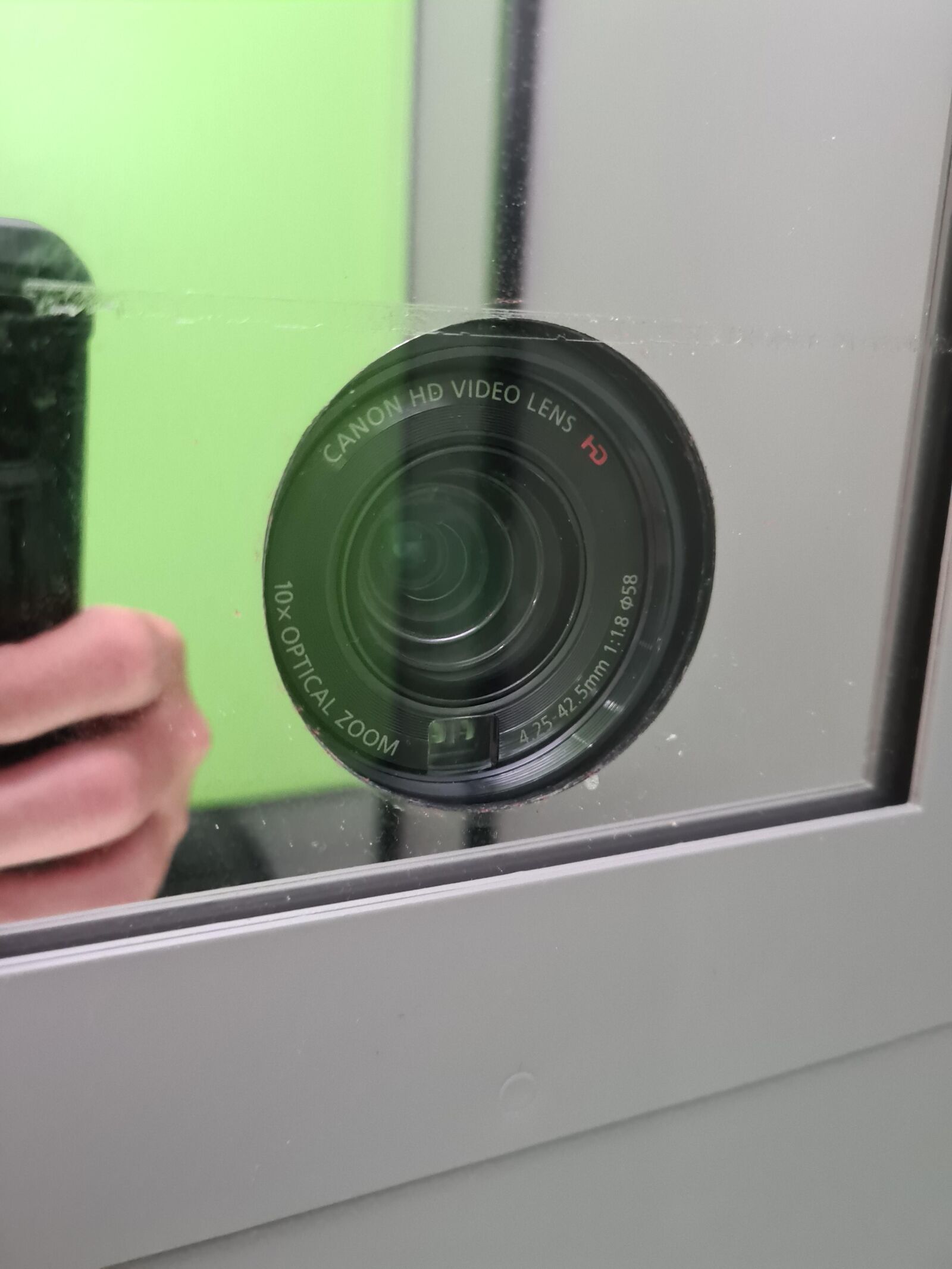
1. The acrylic in front of the camera should be cleaned daily on the outside face and every 60-90 days on the inside face. Failure to do so will affect your quality of images. This a self-service item and not covered by support.
2. Are all the lights working? Above and below the camera and at rear of ceiling unit. There are NO lights fitted in the ceiling unit at the front or middle. Lights out? Call or email support.
-
1. Make sure the acrylic panels are cleaned as per manual.
2. Has the camera been ‘played’ with and the Auto-Focus turned off? Locate AF/MF button flip screen and switch back on.
3. Is the camera lens clean? If not, get ID unit to clean.
-
1. Close software, remove USB from PC that connects to STARTECH capture card. Remove HDMI cable from STARTECH capture card. Turn off PC. Re-attach USB and HDMI cable. Re-start PC. Is live preview back or still black screen?
1b. Live preview is back – continue with capture process. Black screen still? – see 2
2. Check camera is switched on – review the fold out screen to confirm live view by camera – if booth image seen, camera OK. If not and it is also black, check power to camera and that the camera is set in CAMERA mode not PLAY.
3. Still a black screen after above checks? Get IT to check capture card and cable at camera connection.
4. Contact our support team once all above carried out. Support would be chargeable if engineer is called out and the above self-help have not been performed/checked.
-
Check the PC terminal has got an internet/intranet connection. With no connection to force servers the software can not locate the required files to store images and will not start. Call your IT dept.
-
1. This indicates that the IT is struggling with the data sent by the camera. This is usually sign of the PC terminal capture card failing or processor struggling to work with the data. Often, a re-start of the PC sorts this.
2. Get IT dept to check PC terminal processes and the capture card. Replace capture card (force equipment) or PC Terminal.
-
1. ALL lights off? Check power to booth at wall switch. Check light on extension lead in rear of booth. If not illuminated, get on-site support to check/change fuse in plug.
2. There are 2 light units on front facing panel. The lower of the two is always 50% duller than the upper unit. If either or both are off – check plug not removed from extension lead in back.
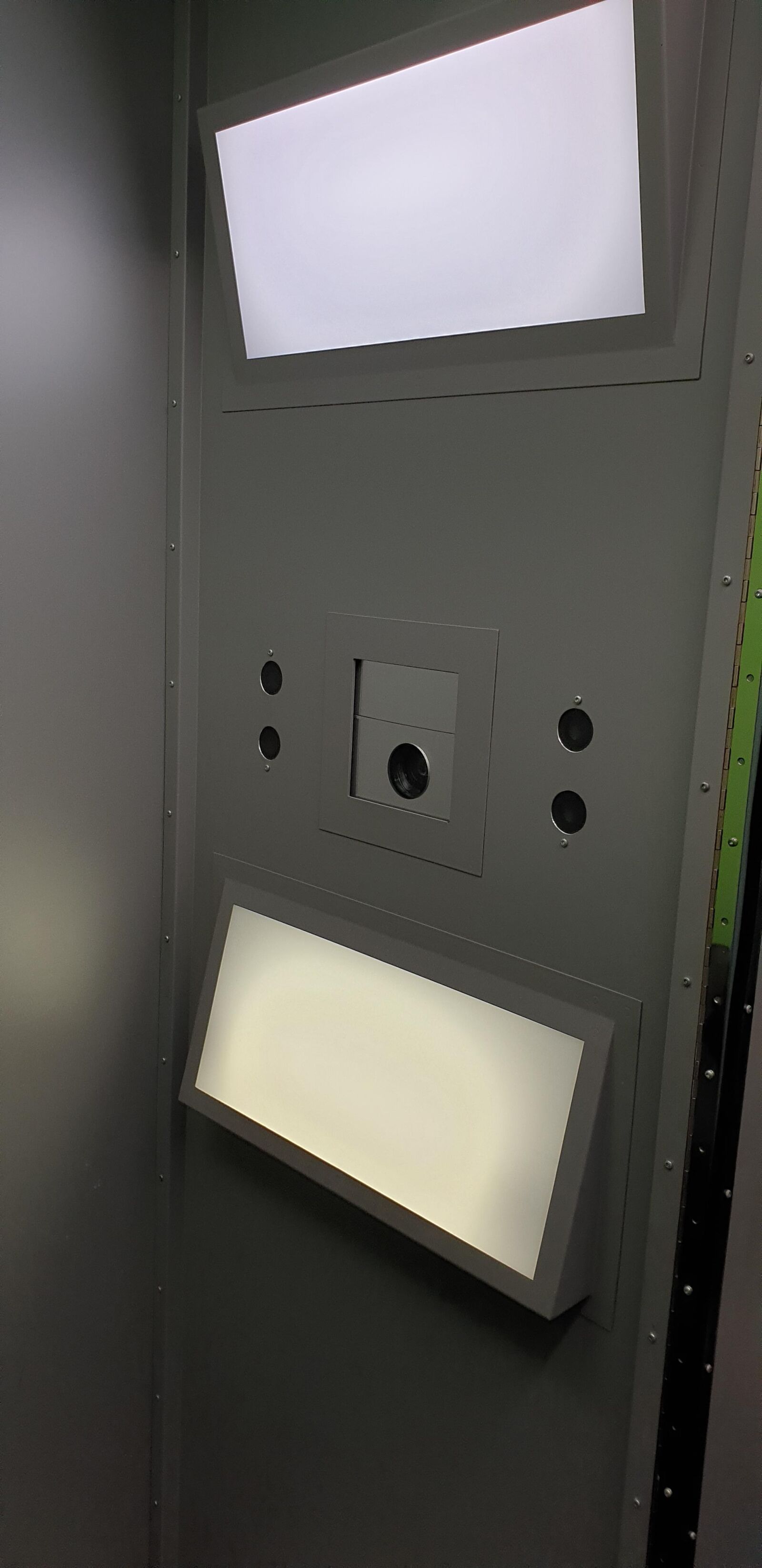
The ceiling unit of the booth is only fitted with lights towards the back of the unit. Do not report lights out if looking at front/middle of this unit.
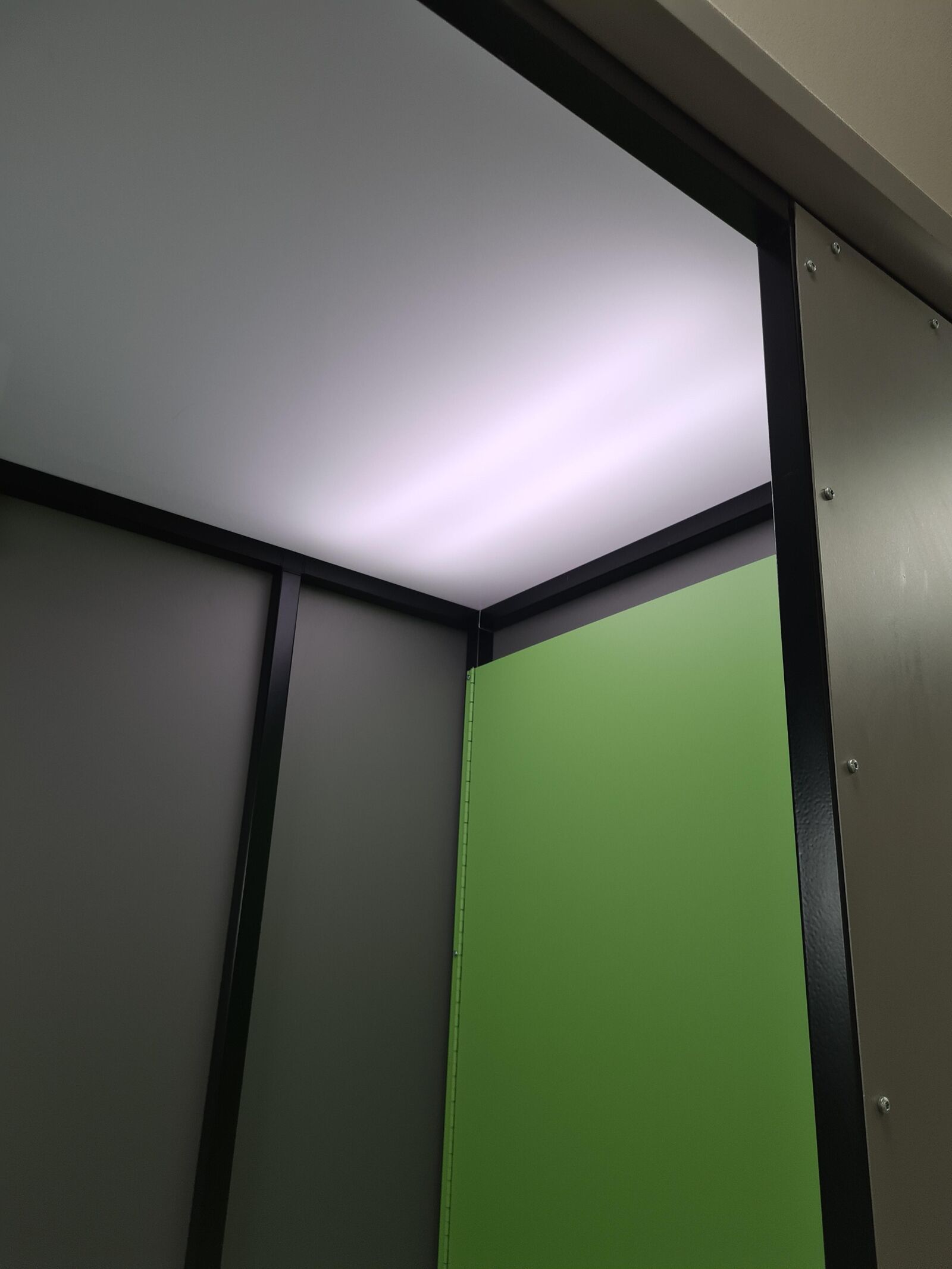 No illumination in ceiling? Check plug in extension lead at back. Call or email our support team.